Image Editing
Z-Image-Edit Online
Edit Images with Natural Language Instructions
Transform your images using simple text commands. Z-Image-Edit understands what you want to change and applies edits precisely, from background replacement to object removal and text addition.
Upload an Image and Write an Edit Instruction
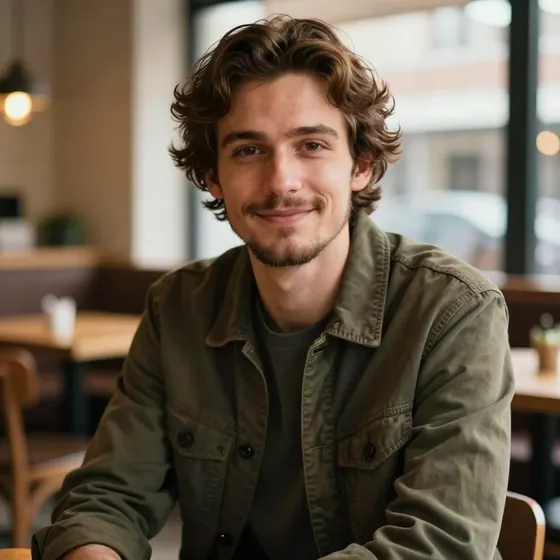
Export, Reuse, and Iterate
Prompt Templates
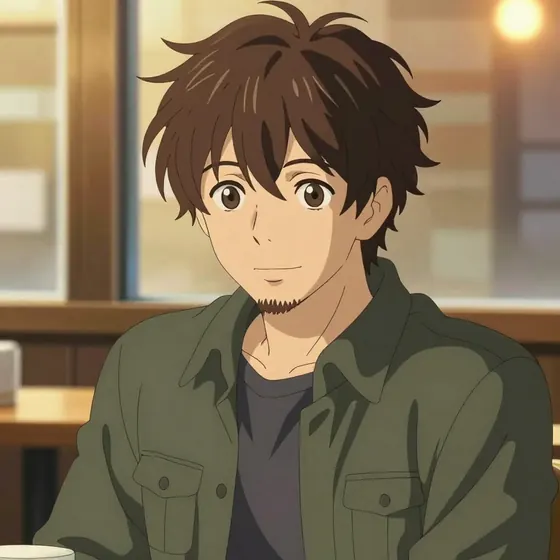
“Convert the portrait into a clean anime illustration while keeping the same person, pose, framing, and background lighting.”
Overview
When to Use Edit vs Turbo (Editing vs Generation)
Choose the right tool for your task:
Use Z-Image-Edit when:
- You have an existing image you want to modify
- You need to preserve specific elements (faces, products, layouts)
- You want to make localized changes without affecting the whole image
- You're doing retouching, cleanup, or targeted adjustments
Use Z-Image-Turbo when:
- You're creating images from scratch
- You need completely new compositions
- You want maximum creative freedom
- Speed is critical and you don't have a source image
How to Use
How to Use Z-Image-Edit Online (Step-by-Step)
Get started with Z-Image-Edit in three simple steps:
01
Upload an Image and Write an Edit Instruction
Start by uploading the image you want to edit. Then write a clear, specific instruction describing what you want to change. Be explicit about what should stay the same and what should change.
02
Use a Mask or Region Edit for Precise Changes
For more control, define the area you want to edit using a mask or region selection. This tells the model exactly where to apply changes.
03
Export, Reuse, and Iterate
Download your edited image and use it as input for further refinements. Iterative editing often produces the best results for complex changes.
Prompt Templates
Prompt Templates for Common Edits
Use these proven prompt structures as starting points for your edits:
Change Background Prompts (Keep Subject Unchanged)
Background replacement is one of the most common editing tasks. The key is explicitly telling the model what to preserve.
Replace the background with a beach sunset, keep the person exactly as they are
Remove Object Prompts (Clean Removal)
Object removal requires clear identification of what to remove and how to fill the space.
Remove the person on the left side of the image, fill with natural background
Add Text or Logo Prompts (Placement + Lighting + Perspective)
Adding text or logos requires attention to perspective, lighting, and integration with the scene.
Add the text 'SALE 50% OFF' in bold red letters on the storefront sign
Troubleshooting
Common Problems (and Fixes)
Troubleshoot common issues with Z-Image-Edit:
Why the Edit Didn't Apply
If your edit instruction doesn't seem to have any effect, try these solutions:
Prompt too vague: Be more specific about what to change and where
No region specified: Use a mask to indicate exactly which area to edit
Why It Changed Too Much
If the model is modifying more than intended, try these approaches:
Prompt too broad: Add explicit anchors: 'only change X, keep everything else identical'
Mask too large: Use a tighter, more precise mask around the edit area
Ready to Edit Your Images?
Start using Z-Image-Edit today and transform your images with natural language instructions.